SecuGen Hamster Pro 20 RD Service Test Page
Online diagnostic test utility for SecuGen Hamster Pro 20 (HU20), Hamster IV, Hamster Plus, and L1 biometric fingerprint scanners. Scan local Registered Device (RD) Service ports (11100–11105) and WebAPI endpoints, inspect firmware metadata, extract hardware serial numbers, and perform live biometric capture tests for Aadhaar, AEPS, CSC, and Ayushman Bharat portals.
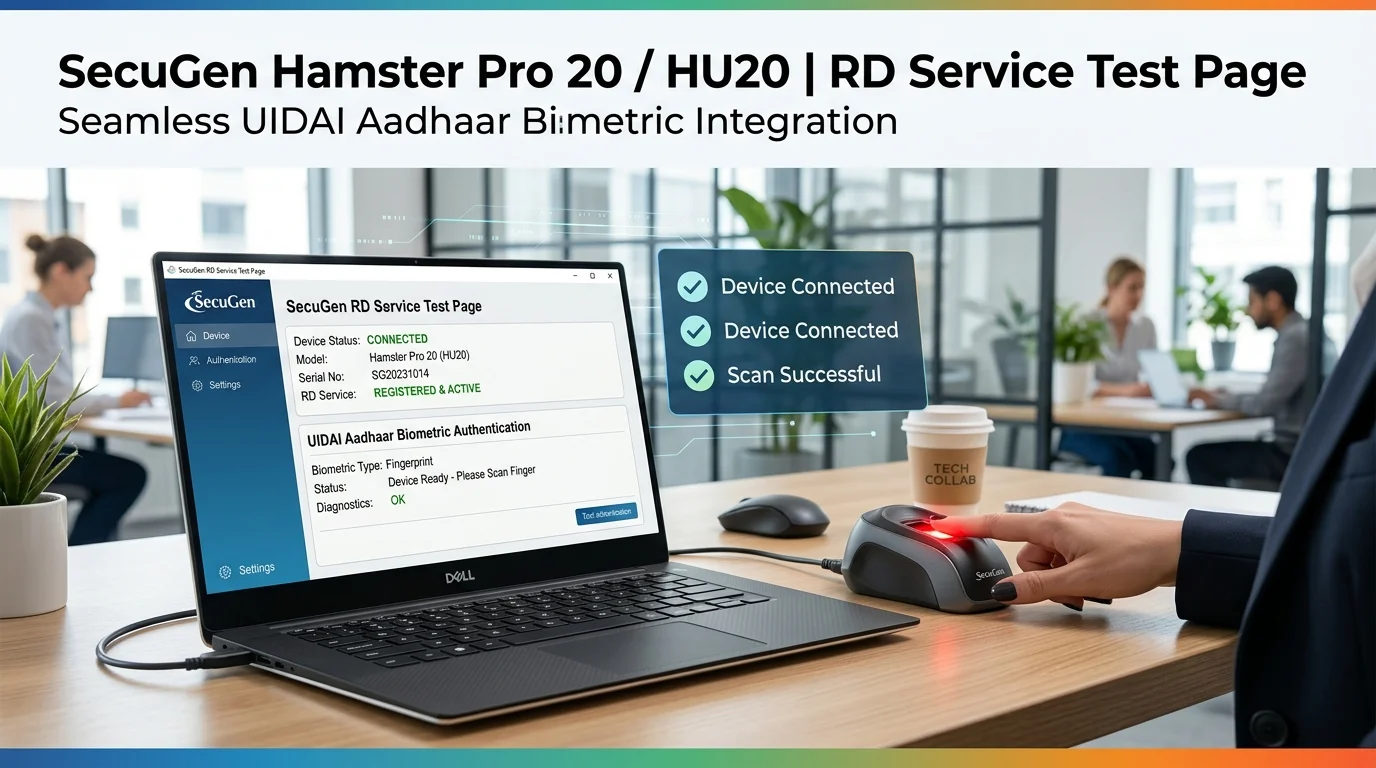
- Connect your SecuGen Hamster Pro 20 scanner via USB.
- Confirm SecuGen RDService or SGIBioSrv is running in
services.msc. - Click 1. Run Initialization & Port Scan to locate the active driver port.
- Use Device Info and Test Device to verify hardware communication and biometric capture.
==> SecuGen RD Service Diagnostic Console Ready.
==> Click '1. Run Initialization & Port Scan' to scan localhost ports 11100–11105.
Verify in Windows Services (services.msc) that 'SecuGen RDService' or 'SGIBioSrv' is Running.
Windows Defender Firewall must permit local HTTP loopback communication on 127.0.0.1.
Plug scanner directly into a motherboard USB port. Avoid unpowered extension hubs.
Ensure the patented SEIR sensor glass is clean and free of dust, oils, or smudges.
| Model | Certification | Features |
|---|---|---|
| Hamster Pro 20 (HU20) | L0 Certified | 500 DPI, IP54 Water/Dust resistant, Auto-On™ |
| Hamster Pro 20 L1 | L1 Mandate | On-chip hardware cryptographic secure element |
| Hamster IV | STQC Certified | Heavy-duty optical biometric reader with Smart Capture™ |
| Hamster Plus | FIPS 201 Ready | Compact desktop USB fingerprint reader |
| Code | Description & Action |
|---|---|
| 0 | Success: Fingerprint captured & encrypted. |
| 53 | Device Not Found: Scanner disconnected from USB. |
| 54 / 700 | Capture Timeout: No finger placed on sensor within timeout. |
| 720 | Device Not Ready: Scanner initializing or driver busy. |
| -1307 | Port Lock / Busy: Another application is accessing the scanner. |
Plug your SecuGen Hamster Pro 20 (HU20) or Hamster IV into a USB port. Press Win + R, type services.msc, and ensure SecuGen RDService status is Running.
Click 1. Run Initialization & Port Scan. The browser will query localhost candidate ports (11100 to 11105). Once discovered with status READY, the active port will be selected in the dropdown.
Click Device Info to verify model (MI), provider ID (dpId), and certificate validity. Click Serial Number to extract the hardware serial number (srno) directly from device memory.
Click Test Device. The red LED on the SecuGen SEIR optical prism will illuminate. Place your finger firmly on the glass sensor. The tool will parse the captured PID Data XML and display the Quality Score (qScore).
127.0.0.1 (localhost). Our online diagnostic scanner automatically probes all candidate ports to discover your active SecuGen driver node.
services.msc, and click 1. Run Initialization & Port Scan. Once discovered with status READY, click Test Device and place your finger on the red optical glass.
services.msc, and re-run initialization.
DEVICEINFO query and extracts the srno parameter, which matches the barcode serial printed on the rear sticker of your SecuGen reader.
services.msc.
Reviews
No reviews yet
Be the first to share your feedback.