Precision Fingerprint Scanner RD Service Test Page
Online diagnostic test utility for Precision Biometrics PB510, PB510 L1, and CSD200 optical fingerprint scanners. Probes local Registered Device (RD) Service ports (11100–11120), queries device info and hardware serial numbers, configures custom PID options, and tests live fingerprint capture for Aadhaar, AEPS, CSC, and PM-Kisan portals.
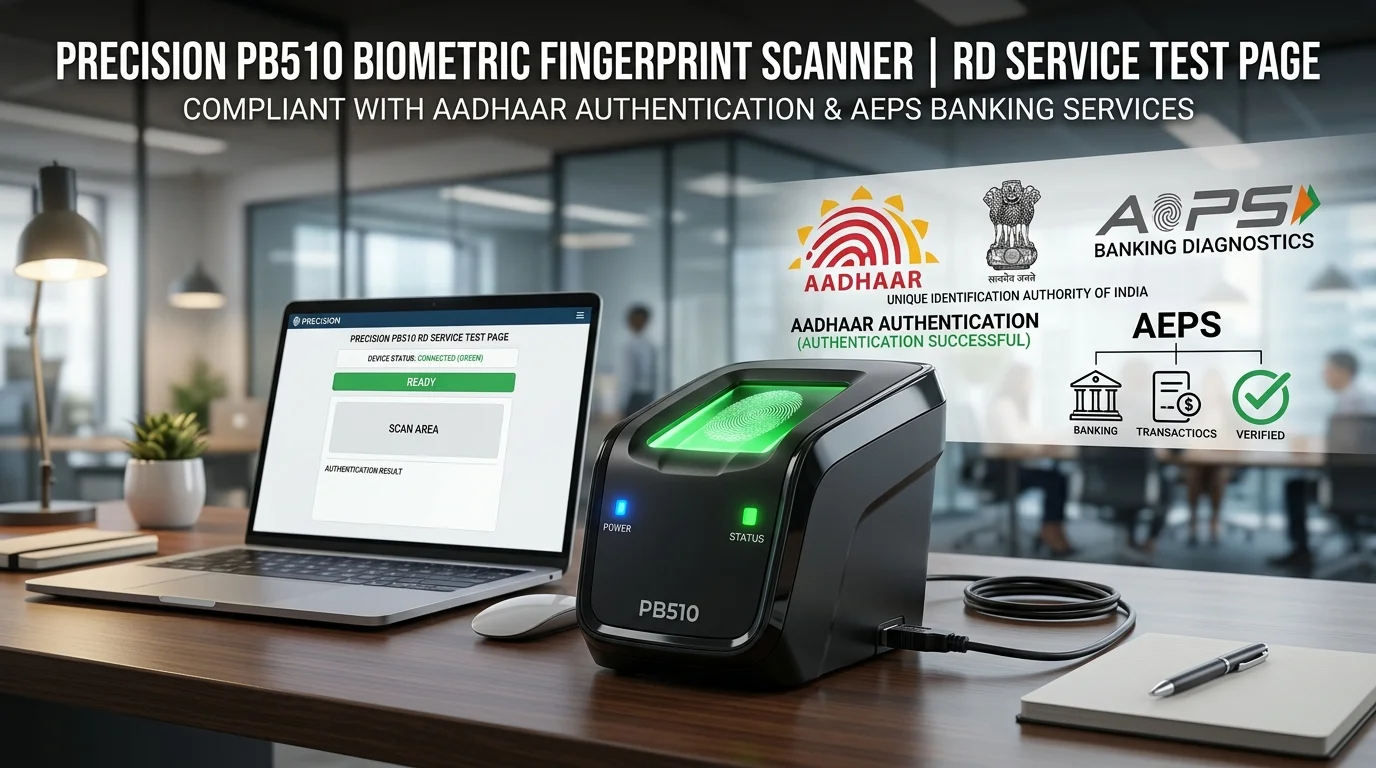
- Connect your Precision PB510 or CSD200 scanner via USB.
- Confirm Precision RDService is running in
services.msc. - Click 1. Discover & Initialize RD Service to locate the active driver port.
- Use Device Info and Test Capture to inspect device telemetry and capture quality.
==> Precision RD Service Diagnostic Console Ready.
==> Click '1. Discover & Initialize RD Service' to probe ports 11100–11120.
Verify in Windows Services (services.msc) that
'Precision RDService' status is Running.
Firewall & Antivirus must permit local HTTP loopback on
127.0.0.1.
Connect scanner directly to a motherboard USB port. Avoid unpowered USB splitters.
Ensure the optical sensor glass is clean and free of smudges, grease, or dust.
| Model | Certification | Type |
|---|---|---|
| Precision PB510 | L0 Certified | USB Optical Scanner (500 DPI) |
| Precision PB510 L1 | L1 Mandate | Hardware Encrypted Secure Element |
| Precision CSD200 | STQC Certified | Compact Optical Biometric Reader |
| Precision InSync / CS100 | UIDAI Ready | Integrated POS / Micro-ATM Terminal |
| Code | Description & Action |
|---|---|
| 0 | Success: Fingerprint captured & encrypted. |
| 700 | Capture Timeout: Finger not placed on sensor within timeout period. |
| 720 | Device Not Ready: Scanner initializing, reconnected, or driver busy. |
| -1307 | Port Lock / Busy: Another application is actively communicating with device. |
| 1001 | Driver Stopped: Precision RDService Windows service is not running. |
Connect your Precision PB510 or CSD200 biometric scanner to your computer via USB. Press
Win + R, type services.msc, and verify that Precision
RDService is running and set to Automatic.
Click 1. Discover & Initialize RD Service. The browser will probe candidate loopback ports between 11100 and 11120 using standard UIDAI RDSERVICE HTTP queries. Once detected, the discovered port will be selected in the dropdown.
Click Device Info to retrieve device model (MI), device provider (DP ID), certificate details, and hardware serial number (srno). This confirms end-to-end communication with the Precision cryptographic interface.
Click Test Capture. The red LED optical prism on your PB510 scanner will light up. Place your finger firmly on the optical glass sensor. The tool will parse the returned PID Data XML and display the Quality Score (qScore) and response status.
127.0.0.1 (localhost). Our online diagnostic tool
automatically cycles through all 21 ports in this range and locks onto the first port that
responds with an active Precision RDService XML payload.
services.msc), and
click 1. Discover & Initialize RD Service. Once the scanner status shows
READY, click Test Capture and place your finger on the optical prism.
services.msc, and re-run initialization.
DEVICEINFO call and
parses the srno parameter, which matches the barcode serial printed on the rear
sticker of your PB510 device.
services.msc.
Reviews
No reviews yet
Be the first to share your feedback.