Evolute Fingerprint Scanner RD Service Test Page
Diagnostic and testing utility for Evolute Identi5, Falcon, and Leopard biometric fingerprint scanners. Automatically scan local Registered Device (RD) Service ports (11100–11105), inspect device firmware and serial numbers, and perform live biometric capture tests for Aadhaar, AEPS, CSC, and Jeevan Pramaan portals.
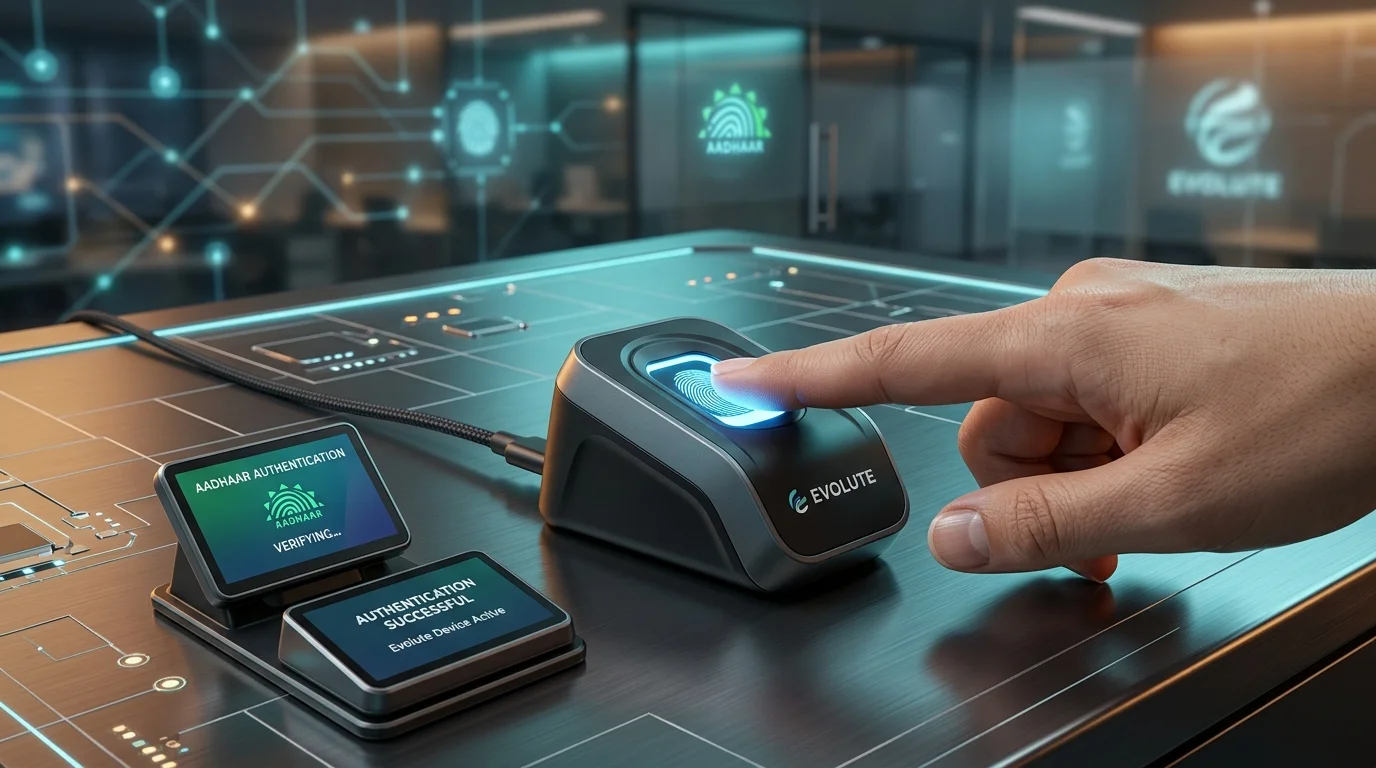
- Connect your Evolute Identi5 / Leopard / Falcon scanner via USB or OTG.
- Ensure the Evolute RD Service driver is active in
services.msc. - Click 1. Run Initialization & Port Scan below to locate the active port.
- Use Device Info and Test Device to verify communication.
==> Evolute Biometric RD Service Test Console Ready.
==> Click '1. Run Initialization & Port Scan' to scan localhost ports 11100–11105.
Check Windows Services (services.msc) to ensure 'Evolute RD Service' is Started.
Firewall and antivirus must allow HTTP communication over 127.0.0.1.
Avoid unpowered USB splitters. Connect directly to PC motherboard USB 2.0/3.0 port.
Ensure the fingerprint scanning glass is free of oil, moisture, or dust for optimal qScore.
| Device Model | Category | Compliance |
|---|---|---|
| Evolute Identi5 | Optical Fingerprint | L0 Certified |
| Evolute Leopard | POS & Micro-ATM | L0 Certified |
| Evolute Leopard Mini | Handheld Terminal | L0 Certified |
| Evolute Falcon | Biometric Scanner | L0 / L1 Mandate |
| Evolute DVL | Dual Biometrics | Banking BC |
| Code | Status | Recommended Action |
|---|---|---|
0 |
Success | Fingerprint captured with valid quality score. |
700 |
Timeout | Finger placed late or removed before capture completed. |
720 |
Not Ready | Device disconnected or driver service restarting. |
-1307 |
Port Lock | Replug USB cable directly into motherboard port. |
1001 |
Service Down | Open services.msc and start Evolute RD Service. |
127.0.0.1 (localhost). If port 11100 is occupied by another Registered Device driver (such as Mantra or Morpho), Evolute automatically falls back to 11101, 11102, 11103, 11104, or 11105.
services.msc to restart "Evolute RD Service", and re-run Initialization.
Reviews
No reviews yet
Be the first to share your feedback.